.png?width=225&height=75&name=Zeplyn_Blue%20%26%20White%20(1).png)
The Hub brings all of your meetings into one place. From here you can search, filter, and take action on any meeting, past or upcoming, without leaving the page.
Finding Your Meetings
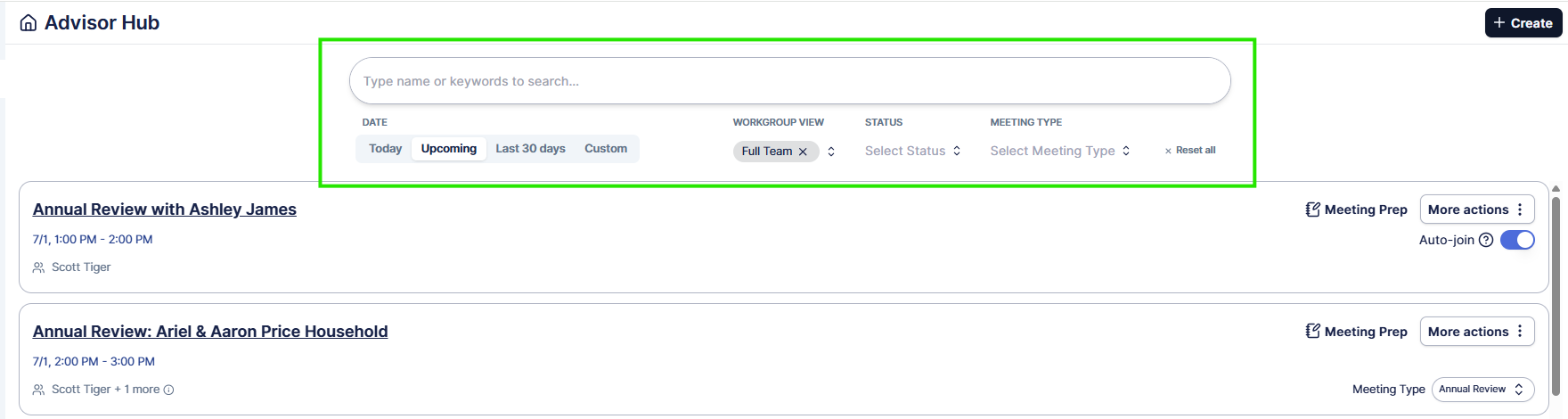
Use the tools at the top of the Hub to quickly narrow down to the meetings you’re looking for:
- Search — Type a client name or keyword to instantly find a meeting.
- Date — Switch between Today, Upcoming, and Last 30 days, or choose Custom to set your own date range.
- Workgroup View — Choose whose meetings you see if you are a part of a workgroup (More about Workgroups in Zeplyn)
- Status — Filter meetings by their current status.
- Meeting Type — Filter by the type of meeting (More about Meeting Types in Zeplyn)
Today's & Upcoming Meetings
- View the meeting title, attendees, and start time.
- Click "Meeting Prep" to get ready ahead of time by generating agendas, reviewing attendee details, advisor notes, and confirm location (More on Meeting Prep in Zeplyn)
- Easily change the meeting type and Auto-join preference right from the Hub.

Past Meetings
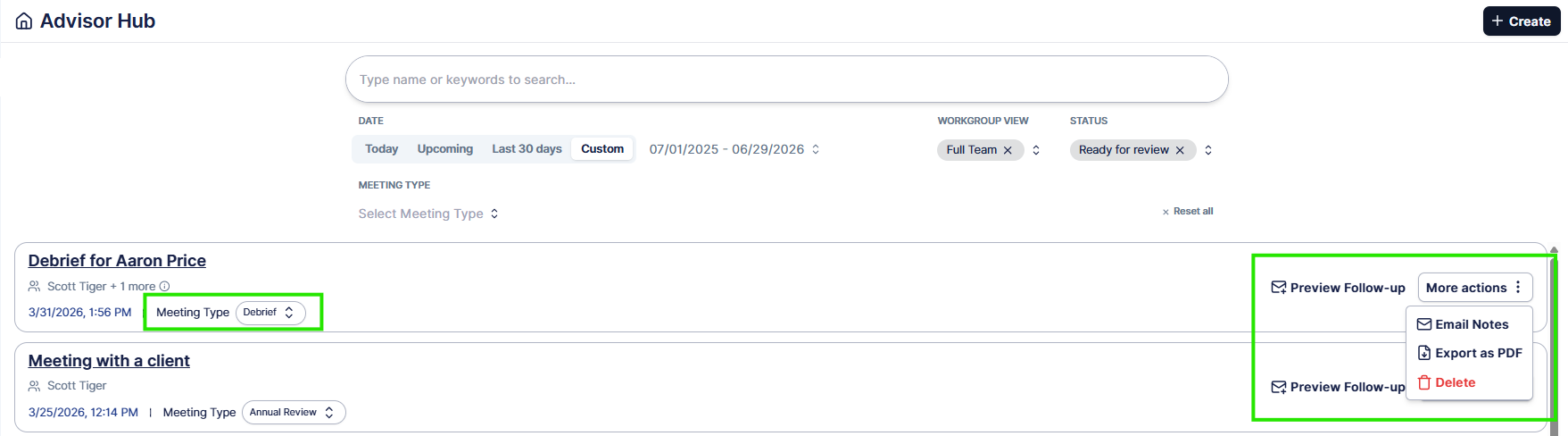
- Email notes to yourself, or download them as a PDF, for easy reference. (More on email notes and download as a PDF in Zeplyn)
- Preview an email follow-up to the client to summarize the meeting and action items
- Review a note for insights and action items, then finalize that note by syncing it to your CRM. You can also edit a note by clicking into the meeting title. (More on Editing or Syncing your notes in Zeplyn)
- Change the meeting type to have the note re-processed as the type of meeting you were hoping for it to be.
- Delete an empty note if no content was captured.
More Ways to Work With a Meeting
- Add Debrief — Capture a post-meeting debrief.
- More actions — Click the More actions button on a meeting for additional options.
- + Create — Use the + Create button in the top-right corner to .
For additional questions, please reach out to support@zeplyn.ai.