---
title: User Management
description: The Users page allows Organization Admins to manage who has access to Zeplyn within their firm. From here, you can add new users, edit existing users, and deactivate access as needed.
---
[Skip to content](https://kb.zeplyn.ai/en-us/zeplyn-help-center/user-management#main-content)
English - United States
Show submenu for translations
.png?width=225&height=75&name=Zeplyn_Blue%20%26%20White%20(1).png)
Open main navigation
Close main navigation
- English - United States
Show submenu for translations
How can we help you?
- There are no suggestions because the search field is empty.
1. [Zeplyn Help Center](https://kb.zeplyn.ai/en-us/zeplyn-help-center?hsLang=en-us)
2. [Getting started](https://kb.zeplyn.ai/en-us/zeplyn-help-center/getting-started?hsLang=en-us)
# User Management
## The Users page allows Organization Admins to manage who has access to Zeplyn within their firm. From here, you can add new users, edit existing users, deactivate access, and export your user list as needed.
*🔒 This setting is only visible to users with **Organization Admin** permissions.*
#### Where to Find User Management
1. Go to **Settings**
2. Scroll to the **Admin** section
3. Click **Users**
****
### What You Can Do
### Add a New User
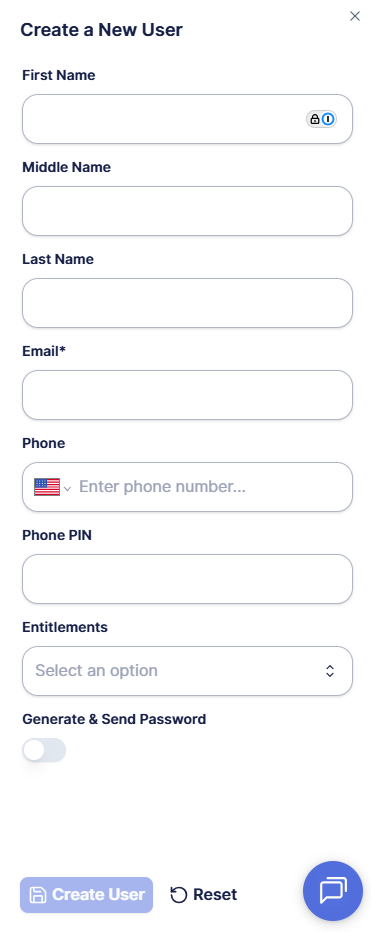
1. Click **Create User**
2. Enter the user’s **First Name, Last Name, and Email** (required)
3. (Optional) Add **Phone** and **Phone PIN**
4. Select **Entitlements** to determine if the user should also be an **Organization Admin**
5. (Optional) Toggle **Generate & Send Password** if you want Zeplyn to generate login credentials
6. Click **Create User**
*Users do **not** receive a standard Zeplyn welcome email. If login credentials are not generated and sent, you will need to provide access details to the user directly.*
### Edit an Existing User
1. Locate the user in the list
2. Click the **Edit (✏️)** icon
3. Update user details as needed
4. Save changes
### Deactivate a User
1. Locate the user in the list
2. Click the **Delete (🗑️)** iconConfirm deactivation
*Deactivating a user removes their access to Zeplyn but does not delete historical data.*
### Search and Filter Users
- Use the **search bar** to find users by name or email
- Toggle **Show inactive users** to view previously deactivated users
### Export Users
Click **Export** to download the current user list as an Excel (.xlsx) file for reporting or record-keeping.
#### Understanding the Users Table
The Users table provides a quick view of:
- **Name** – User’s full name
- **Email** – Login email associated with the account
- **Active** – Indicates whether the user currently has access
#### Entitlements (Roles)
- **Organization Admin** – Full access to settings, user management, and firm-level configuration
- **Standard User** – Access to Zeplyn functionality without admin controls
#### Best Practices
- Keep your user list up to date to maintain security and accuracy
- Deactivate users who are no longer with your firm
- Ensure correct emails are used to avoid access issues
*For additional questions, please reach out to [support@zeplyn.ai](mailto:support@zeplyn.ai).*
- [Getting started](https://kb.zeplyn.ai/en-us/zeplyn-help-center/getting-started?hsLang=en-us)
- [Integrations](https://kb.zeplyn.ai/en-us/zeplyn-help-center/integrations?hsLang=en-us)
- [FAQs](https://kb.zeplyn.ai/en-us/zeplyn-help-center/faqs?hsLang=en-us)
- [Zeplyn Agent Nexus](https://kb.zeplyn.ai/en-us/zeplyn-help-center/zeplyn-agent-nexus?hsLang=en-us)
[mailto:email@email.com](mailto:email@email.com)
Copyright © 2026, Zeplyn