.png?width=225&height=75&name=Zeplyn_Blue%20%26%20White%20(1).png)
Option 1: Disable for your individual account (Advisors)
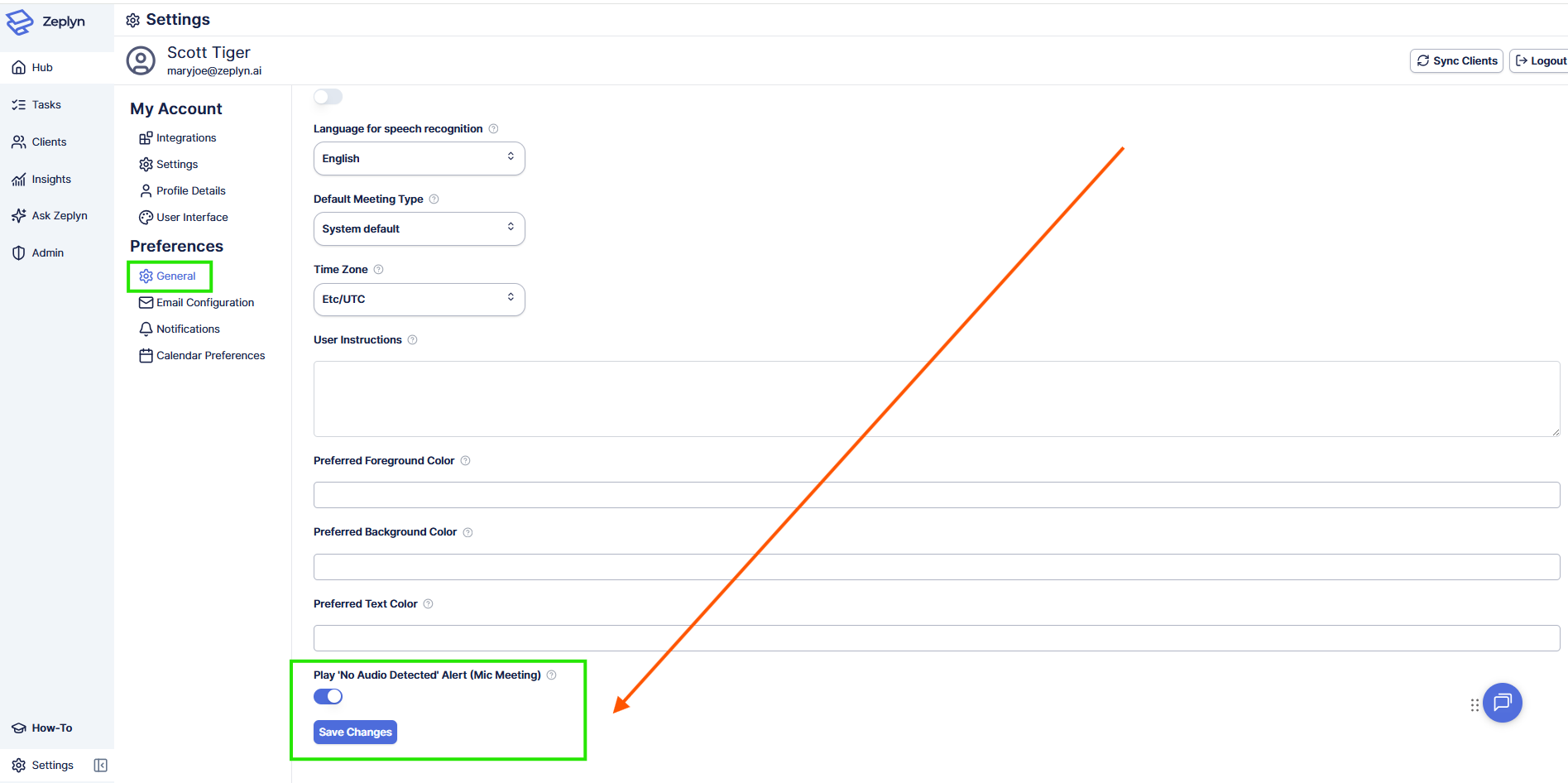
Individual advisors can turn off this alert for their own account without admin help:
- Navigate to your account Settings (bottom left).
- Under Preferences, click General
- Locate Play 'No Audio Detected' Alert (Mic Meeting).
- Toggle the setting off.
- Click Save Changes.
Option 2: Disable organization-wide (Admins)
Admins can disable the alert for the entire organization:
- From the left navigation menu, click Admin.
- Under Organization Preferences, click General.
- Scroll to the bottom of the General settings page to find Play 'No Audio Detected' Alert (Mic Meeting).
- Toggle the setting off.
- Click Save Changes.
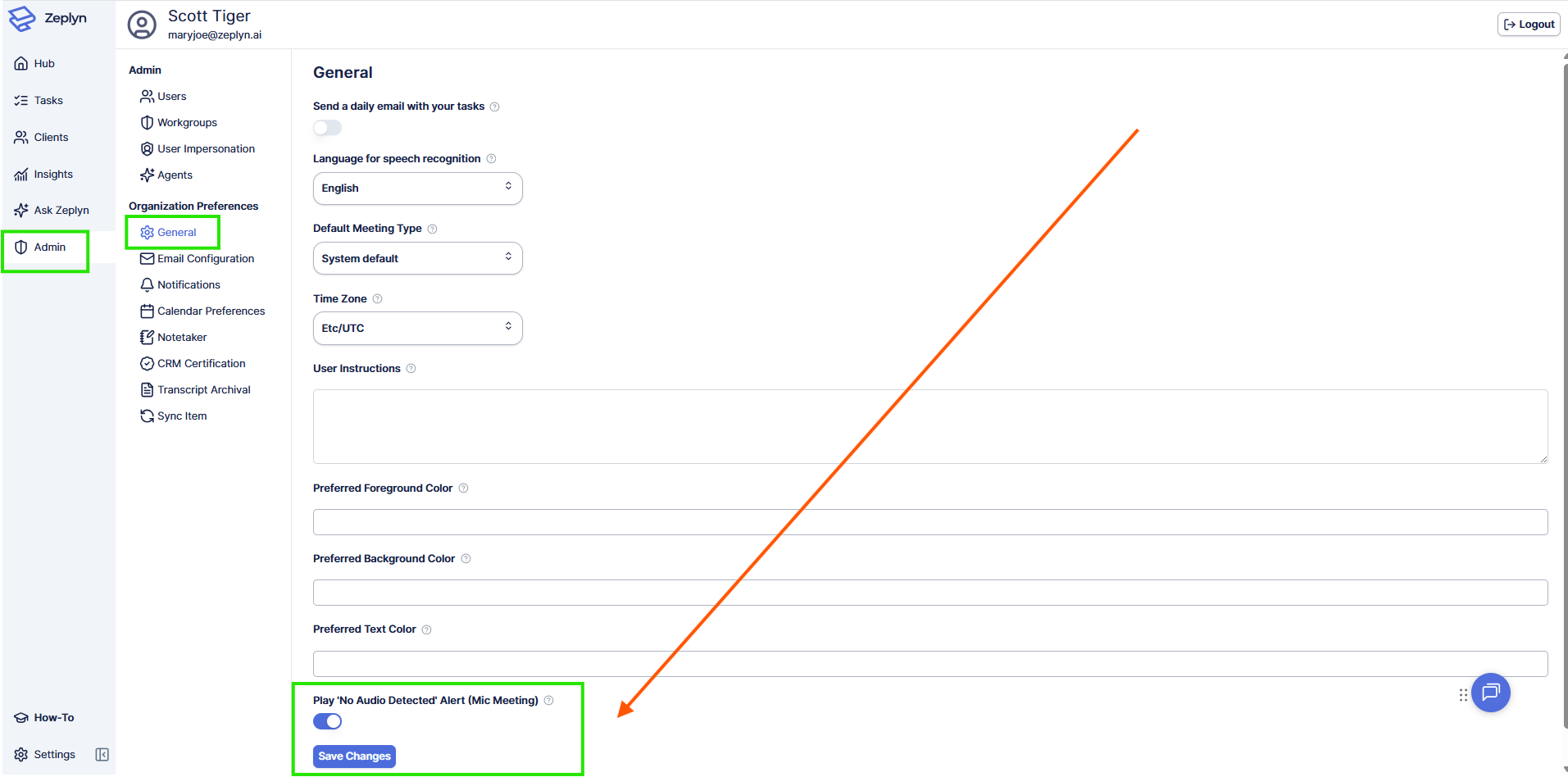
Once saved, the "No Audio Detected" audio disclaimer will no longer play during mic-based meetings when no audio is detected.
To re-enable the alert
Follow the same steps in either location and toggle Play 'No Audio Detected' Alert (Mic Meeting) back on, then click Save Changes.