---
title: Create a Client in Zeplyn
description: Creating a client in Zeplyn allows you to organize meeting notes, track emails, and generate client recaps all in one place.
---
[Skip to content](https://kb.zeplyn.ai/en-us/zeplyn-help-center/create-a-client-in-zeplyn-#main-content)
English - United States
Show submenu for translations
.png?width=225&height=75&name=Zeplyn_Blue%20%26%20White%20(1).png)
Open main navigation
Close main navigation
- English - United States
Show submenu for translations
How can we help you?
- There are no suggestions because the search field is empty.
1. [Zeplyn Help Center](https://kb.zeplyn.ai/en-us/zeplyn-help-center?hsLang=en-us)
2. [FAQs](https://kb.zeplyn.ai/en-us/zeplyn-help-center/faqs?hsLang=en-us)
# Create a Client in Zeplyn
## Allows you to organize meeting notes, track emails, and generate client recaps all in one place.
You can create a client in two ways:
- From the **Clients tab**
- Directly from a **meeting note** (before, during, or after a meeting)
### Option 1: Create a Client from the Clients Tab
1. Navigate to **Clients** from the left-hand menu
2. Click **+ Create** in the top right

3. Fill out the client details in the form:
- - Preferred Name (required)
- First Name
- Last Name
- Email (required)
- Phone (optional)
- Additional fields as needed
4. Click **Create Client**.
### Option 2: Create a Client from a Meeting Note
You can also create a client while working within a meeting note.
1. Open or create a meeting note
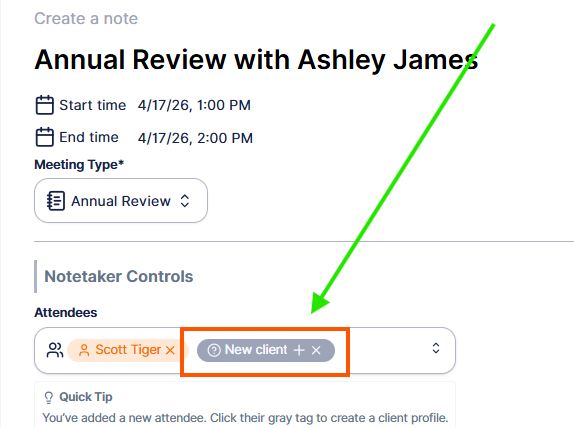
2. In the **Attendees** section, type the client’s name
3. Click the **+ (plus icon)** in the gray box next to the name
4. Complete the client details if prompted
Once created, it will be blue, not grey. The client will automatically be associated with that meeting note and vice versa.
*If creating after the meeting note you will need to select 'Edit' before adding attendees.*
### What Happens When You Create a Client?
Creating a client profile allows you to:
- Associate meeting notes with that client
- Track and view emails related to the client
- Generate **Client Recaps**
- Maintain a centralized view of all interactions
### Best Practices
- Create clients before meetings when possible for cleaner organization
- Ensure email addresses are accurate for proper tracking
- Use consistent naming conventions for easy search and reporting
*For additional questions, please reach out to [support@zeplyn.ai](mailto:support@zeplyn.ai).*
- [Getting started](https://kb.zeplyn.ai/en-us/zeplyn-help-center/getting-started?hsLang=en-us)
- [Integrations](https://kb.zeplyn.ai/en-us/zeplyn-help-center/integrations?hsLang=en-us)
- [FAQs](https://kb.zeplyn.ai/en-us/zeplyn-help-center/faqs?hsLang=en-us)
- [Zeplyn Agent Nexus](https://kb.zeplyn.ai/en-us/zeplyn-help-center/zeplyn-agent-nexus?hsLang=en-us)
[mailto:email@email.com](mailto:email@email.com)
Copyright © 2026, Zeplyn